Guide library
Guides
Your beat online
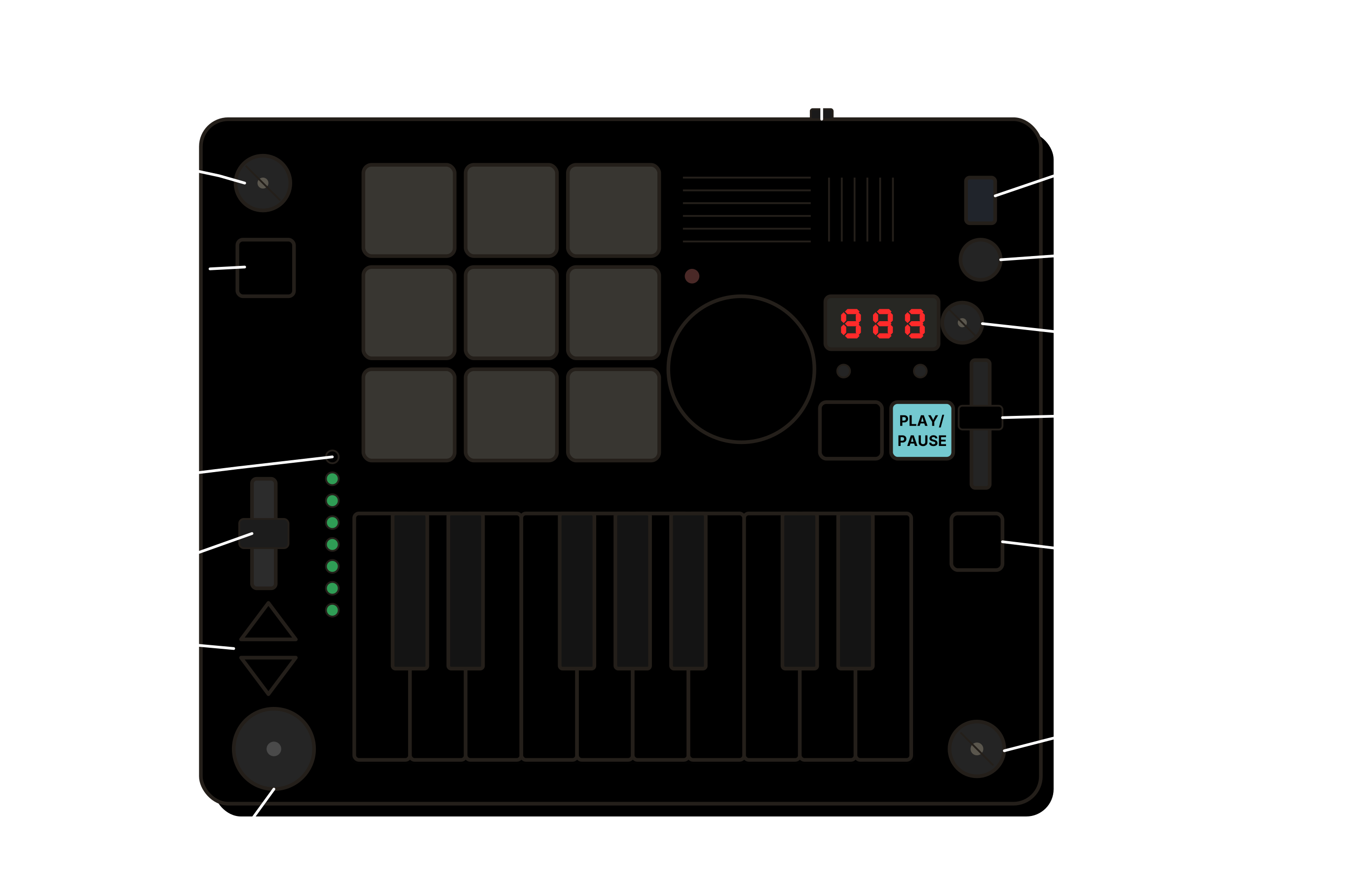
Connect Your Device
Plug in your Beat Brick, connect through the browser, and move new beats into your online library.
Open Connect
Your beat online
Connect Your Device
Plug in your Beat Brick, connect through the browser, and move new beats into your online library.
- 1
Plug in USB
Connect the Beat Brick to your computer with a data-capable USB cable.
- 2
Switch to computer mode
Press the computer mode button if the site asks, then keep the device connected.
- 3
Open Connect
Go to Connect and wait for the connection status to turn ready.
- 4
Let the site do the work
New beats are found, copied to the cloud, and saved to your library.
- 5
Go hear it online
Open your profile or the feed to hear what you made.
Stuck?
If the dashboard does not connect, unplug USB, reconnect it, switch back to computer mode, then retry.
Identity
Set Up Your Profile
Give people a place to find your beats.
Profile guide
Identity
Set Up Your Profile
Give people a place to find your beats.
- 1
Open My Library
Your profile tools live with your synced beats, separate from device connection.
- 2
Pick a username
This becomes the public page where your beats can live.
- 3
Add the basics
Add a name, emoji, location, website, or short bio if you want.
- 4
Share your profile
Send your profile link when you want people to hear multiple beats.
Stuck?
You can keep beats private while still setting up the profile.
Community
Check In On The Community
Hear what other people are making and keep up with new public posts.
Community guide
Community
Check In On The Community
Hear what other people are making and keep up with new public posts.
- 1
Open Community
Browse the public feed from Beat Brick creators.
- 2
Try Latest
Start with the newest posts if you want fresh ideas.
- 3
Try Popular or Trending
Use the filters when you want to find what people are listening to.
- 4
Open a beat
Listen, visit the maker's profile, and share anything you like.
Stuck?
The community feed currently shows public beats, so it gets better as more people publish.
Education
Take A Lesson
Learn grooves, basslines, theory, and song ideas.
Lesson guide
Education
Take A Lesson
Learn grooves, basslines, theory, and song ideas.
- 1
Open Learn
Pick a lesson that looks fun. You do not need to start at the beginning.
- 2
Listen first
Hear the pattern before trying to copy it.
- 3
Follow the breakdown
Use the lesson to understand the rhythm, notes, and musical idea.
- 4
Try it on the machine
Bring one small idea back to the Beat Brick and loop it.
Stuck?
If a lesson feels hard, steal one tiny idea from it and make that your next beat.
Maintenance
Update Your Machine
Advanced tools are available when your machine needs them.
Update guide
Maintenance
Update Your Machine
Advanced tools are available when your machine needs them.
- 1
Plug in USB
Use a data-capable USB cable and keep the machine powered during the update.
- 2
Switch to computer mode
The dashboard can only update the machine while it is connected in computer mode.
- 3
Open Connect
Wait for the device tools to show that the Beat Brick is connected.
- 4
Start the firmware update
Follow the update prompts and do not unplug the machine until it finishes.
Stuck?
If the update fails, reconnect the machine and try again before changing anything else.
Song Lessons6 available
Still D.R.E.
Dr. Dre ft. Snoop Dogg
Come Together
The Beatles
Levels
Avicii
Could You Be Loved
Bob Marley & The Wailers
Blue Monday
New Order
Dixie Chicken
Little Feat